 Cleaning Up Old Receivers
| Document Version | v.1 |
|---|---|
| Document Last Updated | 8/31/2020 |
| Software Version Documented | v.9.6.160 |
Overview
The goal of this document is to go over how to clean up old receivers with Savance Enterprise. This task is very important to your business as it cleans up old data and should be a part of a cleanup process that happens every few months, per quarter or per year. This cleanup task will also help lower your Purchase Liability amount within your ledger.
Viewing Open Receivers
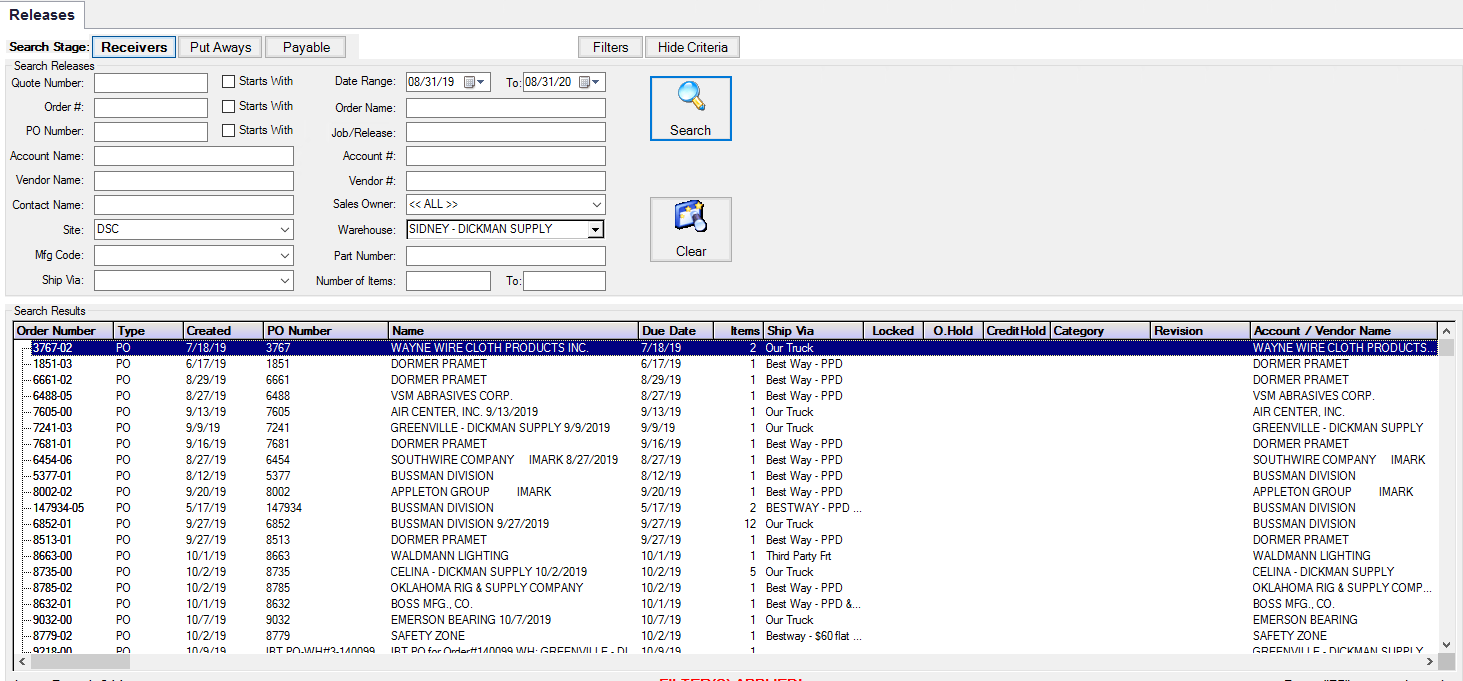
To view your open receivers go to Inventory > Receiving > Receivers


While on the receiver’s screen, it is very important to make sure that you have an extended date range selected. For example, if you are doing this exercise for the first time it will be best to choose a date range that goes back to your go-live date. NOTE: If you have more than one warehouse you will need to do this exercise for each location.
Locate an older receiver and either right-click and select ‘Open Receiver’ or ‘Open Order’, or you can double-click on the receiver to open it.

From this point, an investigation needs to happen. Was the material received and not properly received? Or was the material not received and considered “back-ordered” by the system?
PO was never received
In the scenario, if the PO was never received we need to simply cancel the PO, as it is assumed that you will never receive the back ordered PO.
-
While viewing the receiver select Open PO

-
In the PO look for the line items that were not received or needs to be adjusted (i.e., ordered 4 and only received 2 so the line will need to be adjusted on the PO to order qty 2)
-
Locate the line and right-click to select ‘Cancel or Adjust Item’

-
Once the items have been removed or adjusted select ‘Save’
-
Once the PO has been adjusted the receiver will be removed from the list.
PO was received
In the scenario, you believe the PO was received but not properly received, there are a couple of things that will need to happen after receiving the PO like normal.
-
By receiving and marking receivers as put away, the PO now becomes payable, so a bill will need to be created and paid for this PO. It would be best to get Accounting and Purchasing involved.
-
A cycle count for these items will also need to happen, because you may need to do a stock adjustment so you have the correct amount of items on hand.
-
NOTE: Make sure you uncheck the ‘Print Put Away’ report.

Viewing Put Aways
Just like old receivers, sometimes receivers get left in the Put-Away stage. During this cleanup task, it is important to check this stage for old receivers as well.
To view your open put aways go to Inventory > Receiving > Put Aways

While on the Put Away’s screen, it is very important to make sure that you have an extended date range selected. For example, if you are doing this exercise for the first time it will be best to choose a date range that goes back to your go-live date. NOTE: If you have more than one warehouse you will need to do this exercise for each location.
Locate an older put aways and either right-click and select ‘Open Receiver’, ‘Open Order’, or Accounts Payable Write Off or you can double-click on the receiver to open it.
Following the same procedure as the open receivers, an investigation needs to happen. Since the receiver is in its next stage, it is considered in the system as received, but not put away to its location. However, receivers in this stage are not considered ‘Payable’ yet.
In the scenario, you believe the PO was received but not properly received, there are a couple of things that will need to happen after receiving the PO like normal.
-
By receiving and marking receivers as put away, the PO now becomes payable, so a bill will need to be created and paid for this PO. It would be best to get Accounting and Purchasing involved.
-
A cycle count for these items will also need to happen, because you may need to do a stock adjustment so you have the correct amount of items on hand.
-
Writing the PO off. (see the section below)
Accounts Payable Write Off
In the event, you have a very old Put Aways receiver, there is no way to physically put it away, as well as it may be hard to find the paper trail if the Vendor was paid. In this scenario, it is best to Write Off the receiver. To do this select the receiver and right-click and select Accounts Payable Write Off.

Once this is selected you will need to choose to credit a specific Ledger account. By default, we select ‘Cost of Goods Sold’ and select ‘Write Off’

The receiver will be removed from the list.
Additionally, old receivers can be written off through the Accounting Manager.
-
Go to Accounting Manager > Enter Bills > Open Receivers tab

-
From here you can select and highlight the older receiver and right-click and select Accounts Payable Write Off

-
Then select the appropriate write off ledger.
